Git is a distributed version control system
Git Overview
What is Git?
Git is a distributed version control system which means each user has a local copy of the remote repository and can easily be synchronized
What is a Git Repository?
- A series of snapshots or commits
Getting Started
Configuring User Information
- Use the
git config [--local | --global | --system] <key> [<value>]command to specify or read configuration information if you don’t use the[value]option
1 | git config --global user.email "yuxiangwang0829@gmail.com" # set |
Configuring the Default Editor
- Use the
git config --global core.editor [<editorname>]command to specify or read your preferred Git editor if you don’t use the[editorname]option
1 | git config --global core.editor vim # set |
Git Locations
Project Directory
Working Tree
- A single commit’s directories and files
- You can view and edit the files of project, preparing for the next commit
Staging Area/Index
- Files that are planned for the next commit
Local Repository
- Contains all of the commits that have been made for the project
.git Directory
- A hidden .git directory which contains the staging area and local repository
Remote Repository
- Contains the commits of the project
Create a Local Repository
git init— initialize (create) an empty repository
Commit to a Local Repository
- Use
git statusto view the status of files in the working tree and staging area - Use
git addto add content to the staging area - Use the
git commit [-m]command to add staged content to the local repository as a commit, you can use the-mflag to specify a short commit message, if you don’t use the-moption, and then Git will open the default editor to let you write the commit message - Use
git log [--oneline]to view the local repository’s commit history
Push to a Remote Repository
git clone vs. git remote add
If you want to begin working with the remote repository, you have two main options:
- If have a local repository, you want to push to a remote repository, than you will add the remote repository to your local repository
- If not have a local repository, you will clone the remote repository which will create a local repository that is associated with the remote repository
Clone a Remote Repository
A clone is a local copy of a remote repository
A reference to the remote repository is included in the local repository, so you can synchronize the repository
origin is the default alias for the remote repository URL
How to Clone
git clone <url/to/projectname.git> [localprojectname]is used to create a local copy of a remote repository, the last argument (which defines the name of the directory name where the local repository is located) is optional, cloning will create a project directory in your local computer
What Does Clone Do
- After cloning, all the commits on the remote repository will also in your local repository
Note
git remote [--verbose]displays information about remote repositories associated with the local repository
Add a Remote Repository to a Local Repository
git remote add <name> <url>command will add information about the remote repository to the local repository, the two repositories can then be synchronized using aliases instead of URL
Push Commits to a Remote Repository
All commits belong to a branch
A branch can be thought of as an independent line of development of the project
Default Branch
- By default, there is a single branch and it is called master
How to Push
git push [-u] [<repository>] [<branch>]writes commits for a branch from the local repository to a remote repository<repository>can be a name(shortcut which is often origin) or URL-uflag is set to set up a tracking relationship between the local and remote branch[<branch>]is the branch in the remote repository that you want to push to- The arguments after
git pushare all optional, because git will assume default information or use previous arguments after you have executed the first push
What Does Push Do
- A successful push synchronizes the branches on the local and remote repositories so that they they contain exactly the same commits
Note
- Before you run
git pushcommand you can usegit remote --verbosecommand to ensure that your local repository has an association with the remote repository
Git’s Graph Model
- Git models the relationship of commits with directed acyclic graph
- The arrows point at a commit’s parent(s)
- The commits and the relationship between them is what forms the project’s history
- A branch occurs if a commit has more than one child
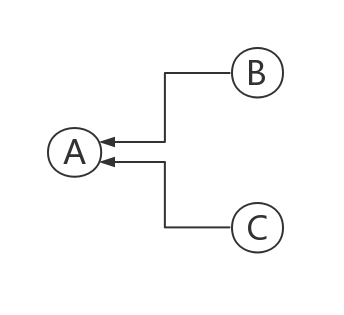
- A merge occurs when a commit has more than one parent
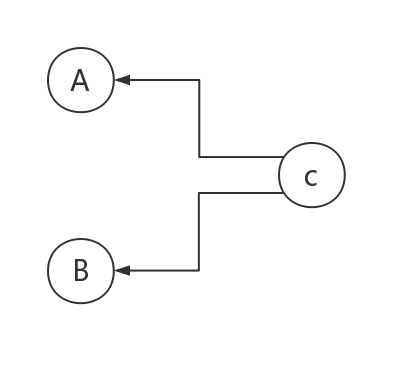
git log [--graph]will show you a diagram
Git IDs
Git Objects
- Commit object - A small text file
- Annotated tag - A reference to a specific commit
- Tree - Directories and filenames in the project
- Blob - The content of a file in the project
Git ID
- The name of a Git Object
- 40 - character hexadecimal string also known as object ID, SHA-1, hash, and checksum
Shortening Git IDs
- The first portion of the Git ID
References
Overview of References
- Commits objects can be associated with references
- A reference is a user-friendly name that points to:
- a commit SHA-1 hash
- another reference(known as a symbolic reference) (such as HEAD)
- Use references instead of SHA-1 hashes,
git showcommand can show the specified commit message, such as usegit show HEAD - References are stored in the .git directory
Branch Label and HEAD Reference
Branch Label References
- master is the default name of the main branch in the repository
- A branch label is a reference points to the most recent commit object in the branch
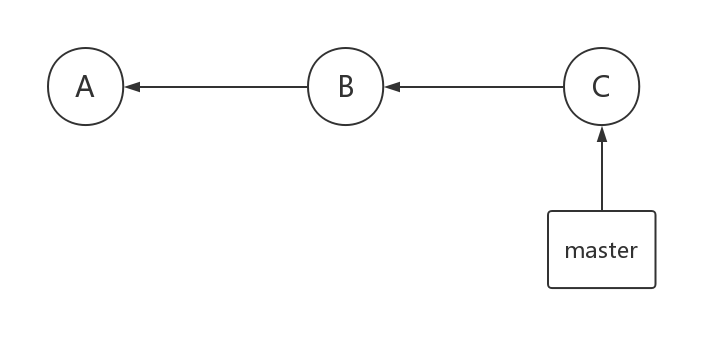
- Branch labels are implemented as references
- The difference between a branch and a branch label:
- All commits belong to the branch
- The branch label is only at the latest commit of the branch
HEAD Reference
- HEAD is a reference to the current commit object
- HEAD usually points to the branch label reference of the current branch
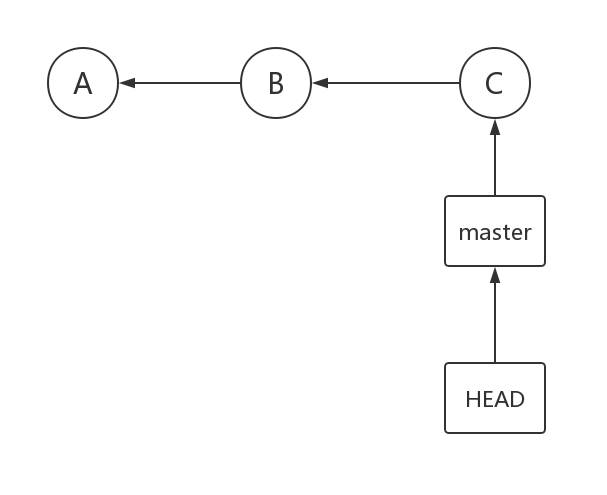
- Only one HEAD per repository
Tag Reference
Tag Overview
- A tag is a reference points to a specified commit object, it acts a user-friendly label for the commit
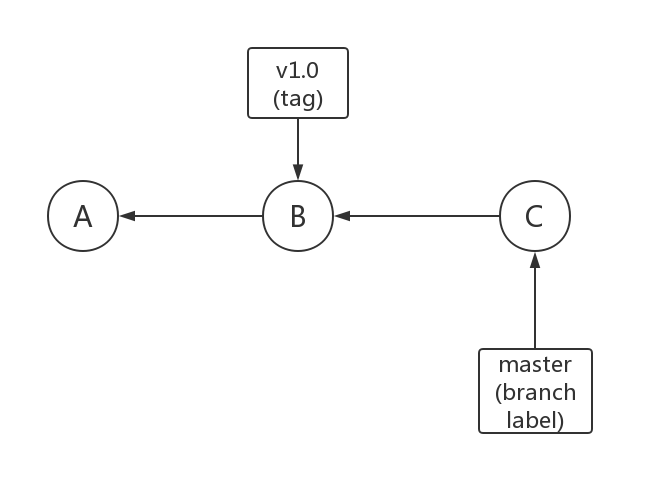
- There are two types of tags:
- Lightweight(A simple reference points to a commit object much like branch label or HEAD)
- Annotated(recommended)
- A full Git object that references a commit
- Includes tag author information, tag date, tag message, the commit ID
Create and View tags
Commands
git tag- View all tags in the repository- Tags can be used instead of branch labels or Git IDs in Git commands such as
git show v1.0 To tag a commit with a lightweight tag:
git tag <tagname> [<commit>]<commit>defaults to HEAD
To tag a commit with an annotated tag:
git tag -a [-m <msg> | -F <file>] <tagname> [<commit>]commitdefault to HEAD
Examples
1 | git init |
Notice
git pushdoes not automatically transfer tags to the remote repository- To transfer a single tag:
git push [<remote>] <tagname> - To transfer all of your tags:
git push [<remote>] --tags
Branches
Branch Overview
A branch is a set of commits starting with the most recent commit in the branch and tracing back to the project’s first commit — root commit
Features
- Fast and easy to create
- Enable experimentation
- Enable team development
- Support multiple project versions
Type
- Short-lived (commonly called topic or feature branches) usually contain one small change to the project
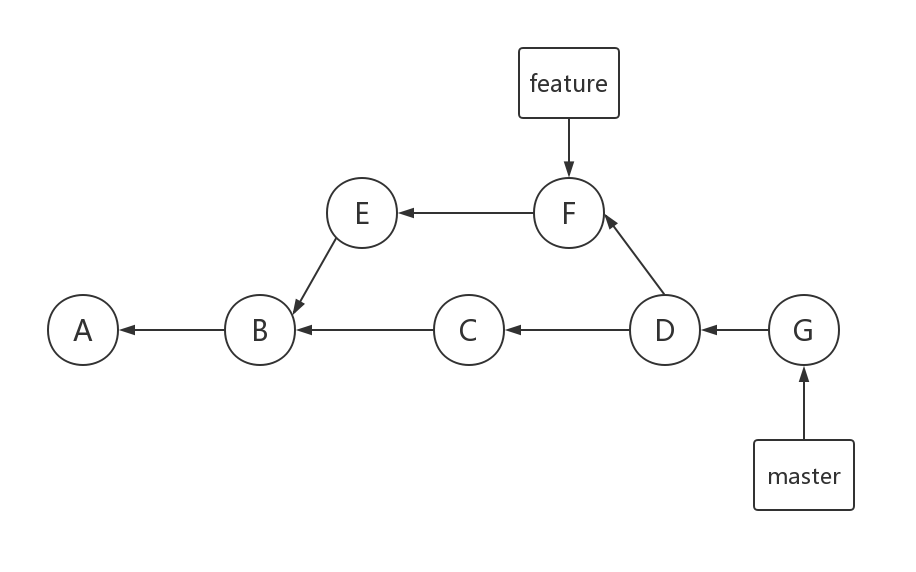
- Long-lived such as master, develop, release
Look Over
- Use
git branchto see a list of branches in a repository
Creating a branch
Commands
- Use
git branch <name>to create a branch
Note
- Creating a branch simply creates a new branch label reference but you remain still on the original branch
Checkout
What Checkout Will Do
- Update the HEAD reference
- Update the working tree with the commit’s files
How To Checkout
- Use
git checkout <branch_or_commit>to checkout a branch or commit - Use
git checkout -b <branchname>to combine creating and checking out a branch into a single command
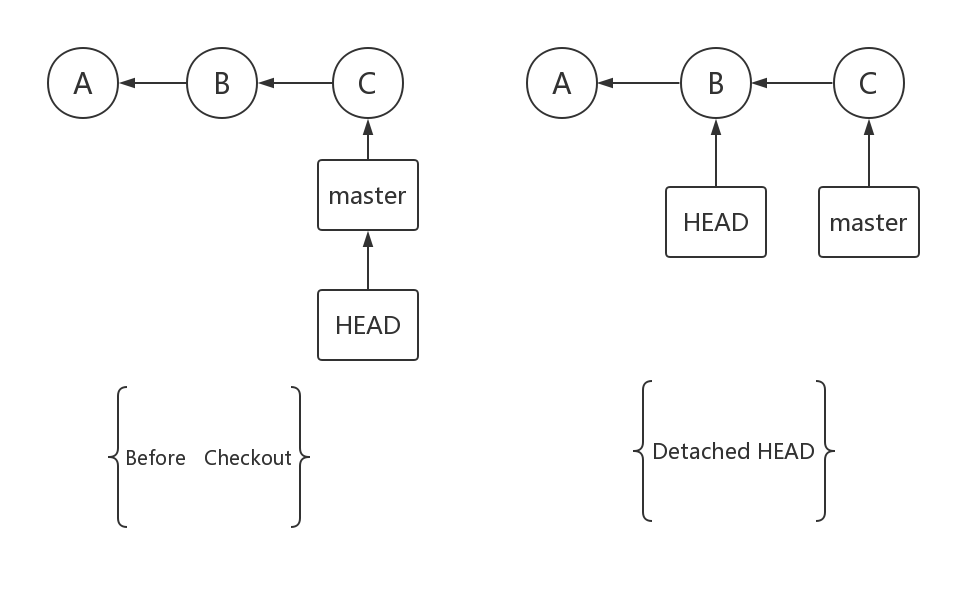
Detached HEAD
- Checking out a commit rather than a branch label leads to a detached HEAD state
1 | You are in 'detached HEAD' state. You can look around, make experimental |
Deleting a Branch Label
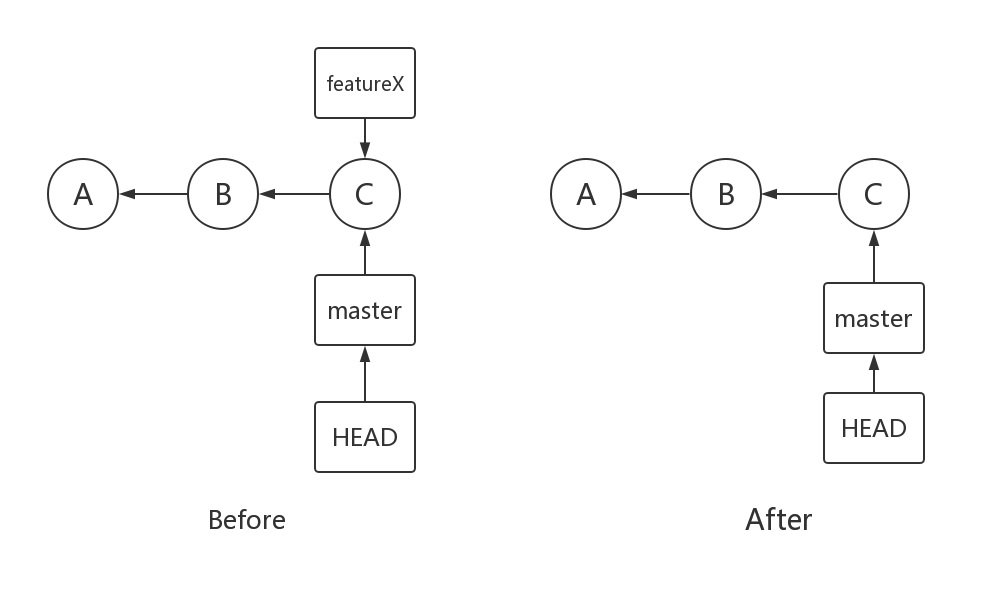
How to Delete
- Use
git branch -d <branchname>to delete a branch
1 | git log --oneline |
Deleting a branch really just means that you’re deleting a branch label
Deleting a not Merged Branch is Forbidden
- If you are trying to delete a not fully merged branch, Git will not let you to do that
1 | git log --oneline |
- If you are sure you want to delete the branch, use the command
git branch -D <branchname>but that will lead to the dangling commits
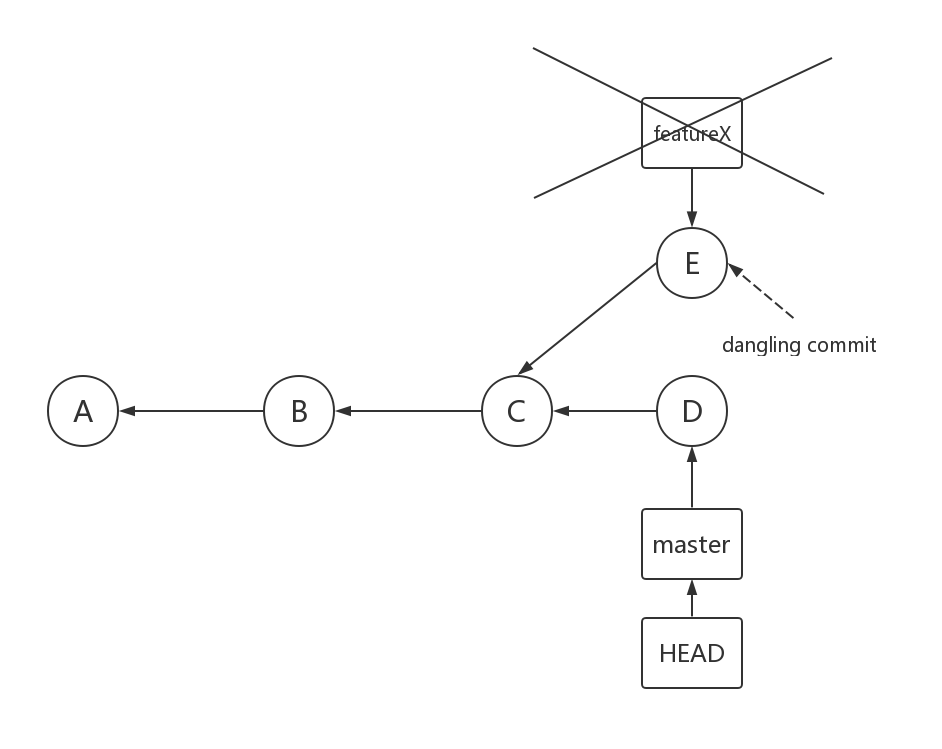
1 | git branch -D featureX |
Git will periodically garbage collect looking for and deleting older dangling commits, So be careful if you use the D option
- You can use
git reflogto return a local list of recent HEAD commits
1 | git reflog |
Merge
Merge Overview
What Does Merge Do
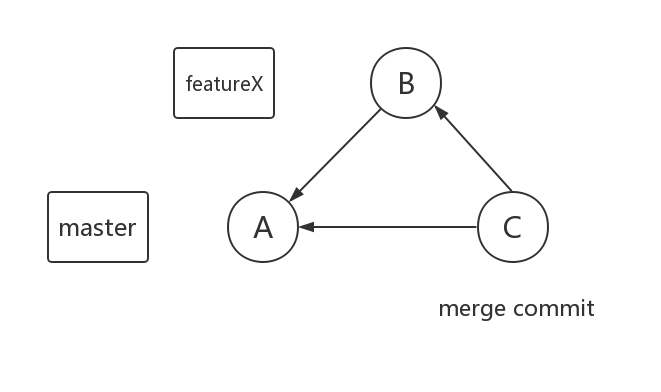
Merging combines the work of independent branches
Type of Merge
- Two main types of merges:
- Fast-forward merge
- Merge commit
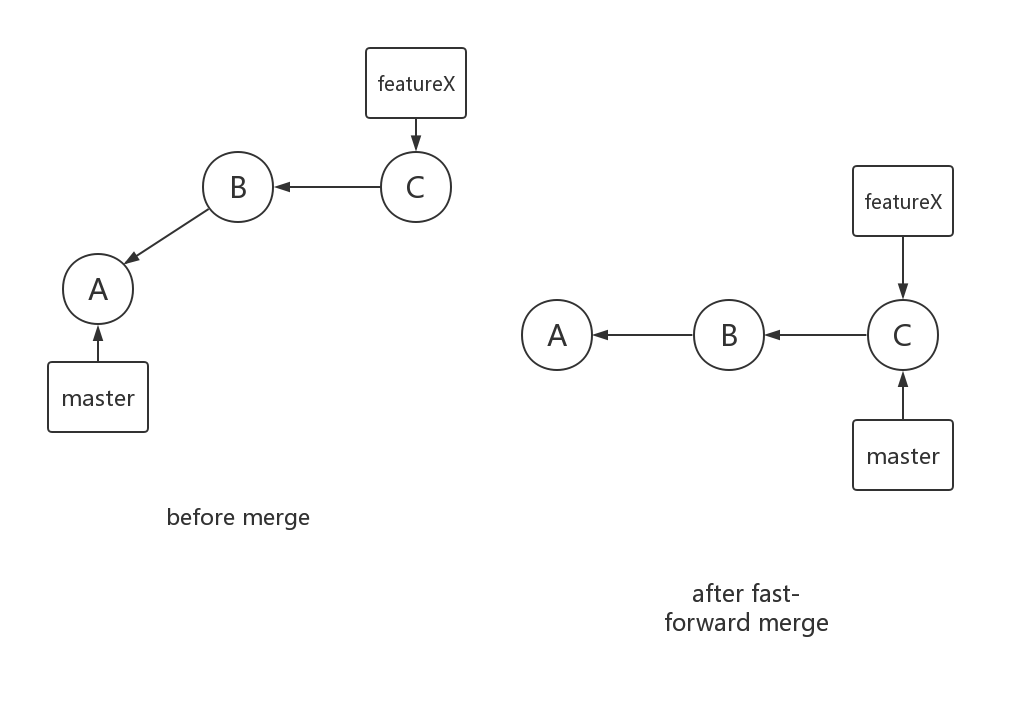
Fast-forward Merge
What Does Fast-forward Merge Do
Just moving the base branch label to the tip of the topic branch
Graph
Note
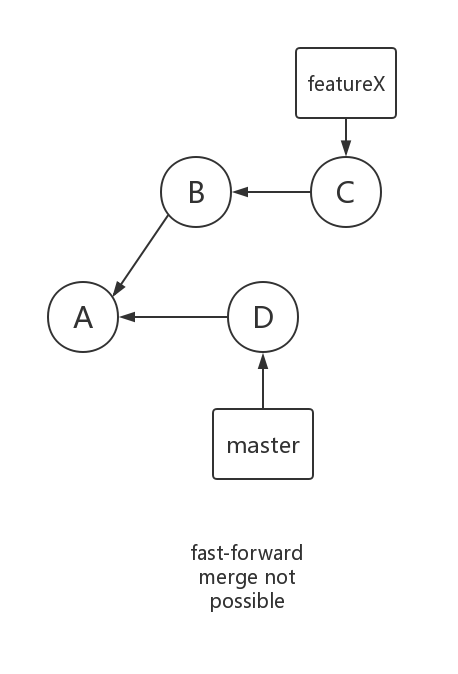
- A Fast-forward merge is possible only when no other commits have been made to the base branch since the topic branch was created
In this example, a Fast-forward merge is not possible:
Example
1 | The basic steps to performing a fast-forward-merge: |
Merge Commit
What Does Merge Commit Do
- Combines the commits at the tips of the merged branches
- Places the result in the merge commit
Graph
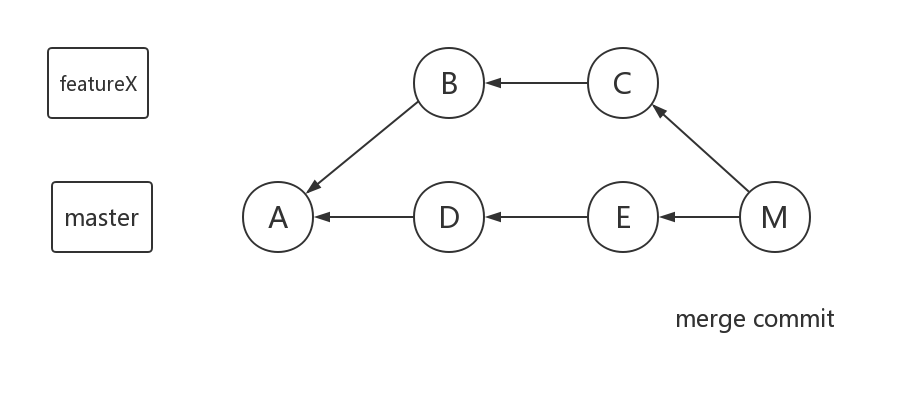
Example
Not Fast Forwardable
1 | The basic steps to performing a merge commit(if the merge is not fast forwardable): |
Is Fast Forwardable
1 | The basic steps to performing a merge commit(if the merge is fast forwardable): |
Resolving Merge Conflicts
Merge Conflict Overview
Hunk
In Git, a part of file is called a hunk
When Does Merge Conflict occur
The merge conflicts occur when two branches modify the same hunk of the same file
Graph
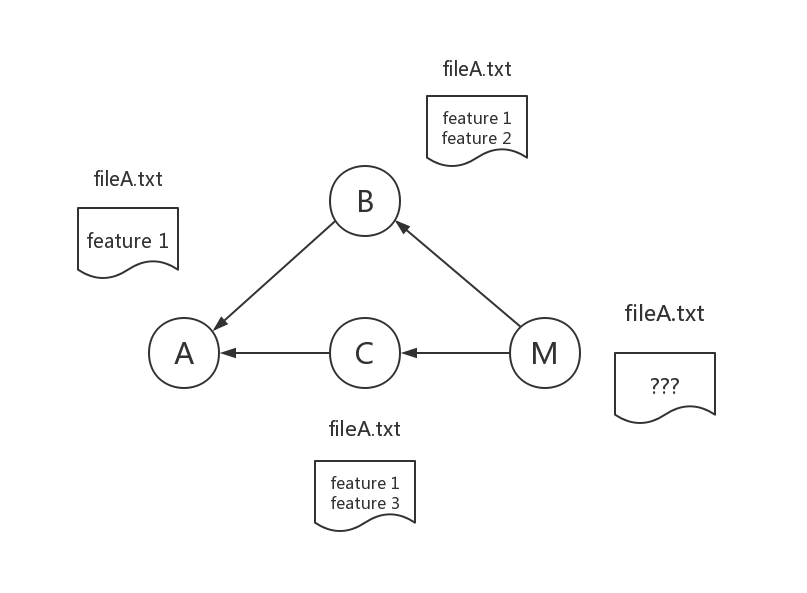
Note
- A person needs to make a decision on how to resolve the merge conflict
- Avoid making a lot of changes over a long period of time without merging
Resolving a Merge Conflict
Graph
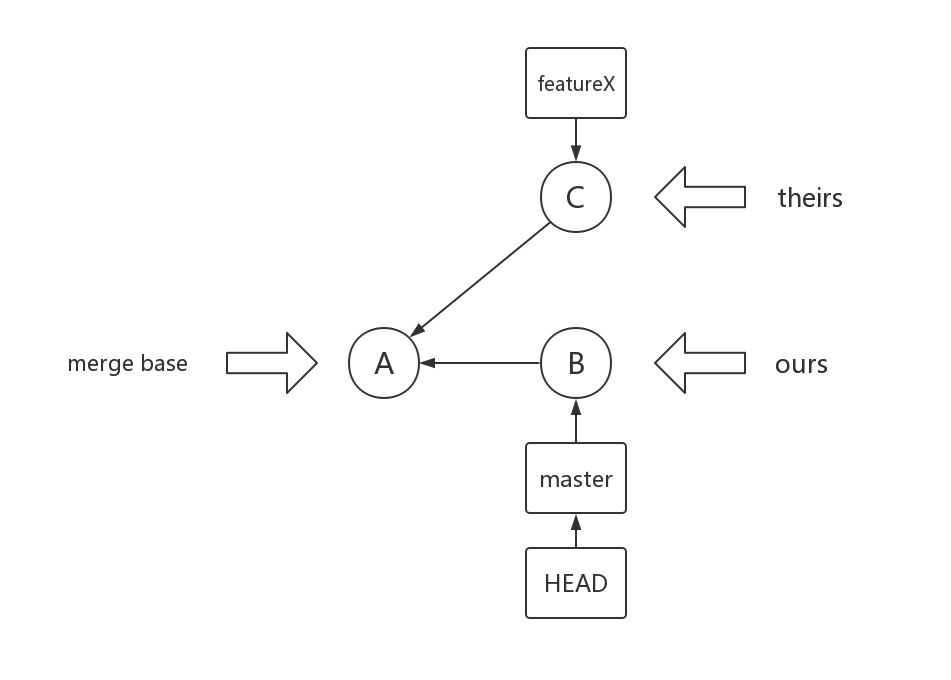
- The tip of the current branch (B) - “ours” or “mine”
- The tip of the branch to merged (C) - “theirs”
- A common ancestor (A) - “merge base”
Example
1 | Basic steps to resolve a merge conflict: |
Note
The conflicted hunks will be displaying just like this:
1 | feature 1 # unconflicted |
Tracking Branches
Tracking Branch Overview
What Is a Tracking Branch
- A tracking branch is a local branch that represents a remote branch
- A tracking branch name is like
remotename/branchname
Note
Tracking branches are only updated with network commands like clone, fetch, pull, and push
Viewing Tracking Branch
How to Watch the Tracking Branch
Command
git branch --all to display all local and tracking branch names
Example
1 | git branch --all |
Special Tracking Branch
HEAD Reference
A reference named
remotes/origin/HEADis a symbolic reference meaning that it is a reference that points to another reference, and this specifies the default remote tracking branch
Example
1 | git branch --all |
Note
- You can use only
<remotename>name instead of the whole tracking branch name which is known asremotename/branchnamein git command and in this case you will use the default remote tracking branch which is specified byremotes/origin/HEAD
1 | git log origin/master --oneline # see the commits of tracking branch origin/master |
- Change the default remote tracking branch with
git remote set-head <remotename> <branch>
1 | git remote set-head origin master |
Viewing Tracking Branch Status
git statusincludes tracking branch status
1 | git status |
git statuswill inform you if the cached tracking branch information is out of synchronous with your local branch
1 | git status |
Fetch, Pull and Push
Network Command Overview
- Clone - Copies a remote repository
- Fetch - Retrieves new objects and references from the remote repository
- Pull - Fetches and merges commits locally
- Push - Adds new objects and references to the remote repository
Fetch
What Does Fetch Do
- Retrieves new objects and references from another repository
- Tracking branches are updated
- Does not impact the local branch labels
Example
1 | git log origin/master --oneline |
Graph
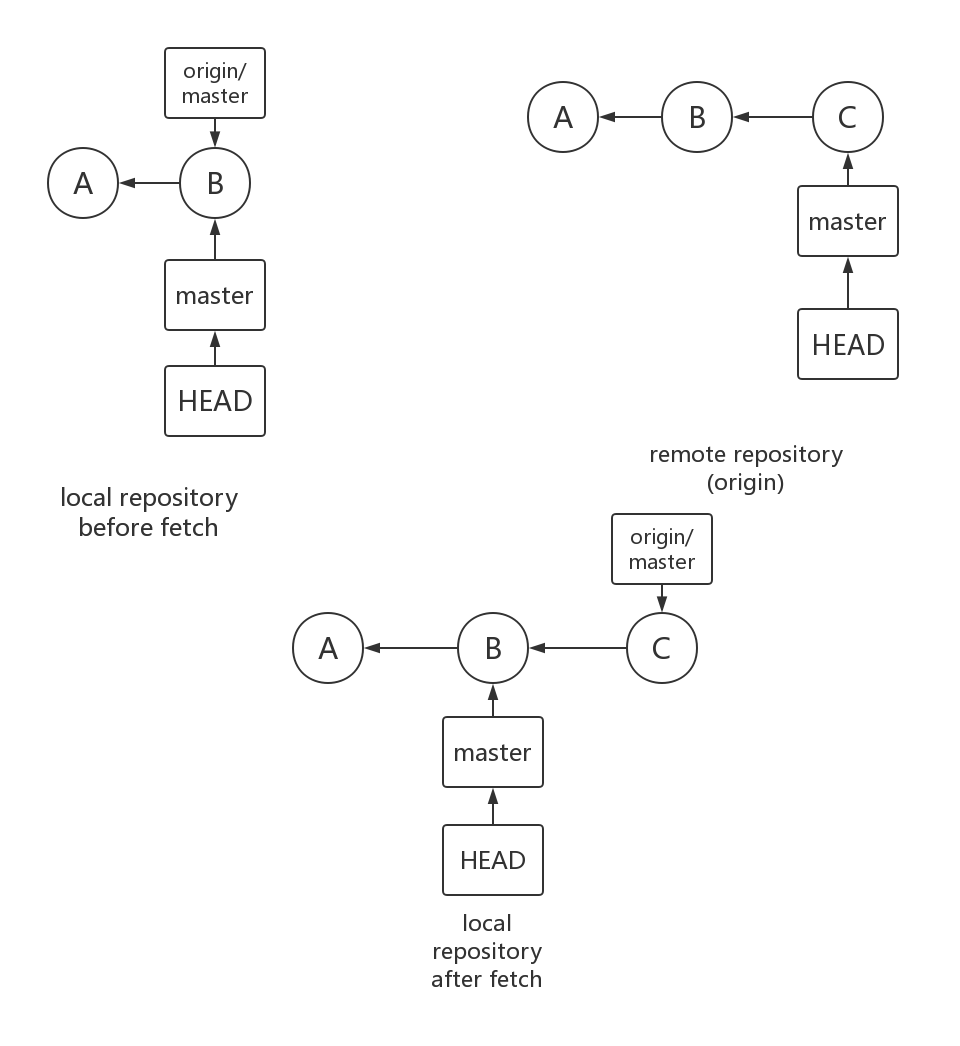
Note
git statuswill inform you that your current branch is behind the tracking branch
1 | git status |
Pull
What Does Pull Do
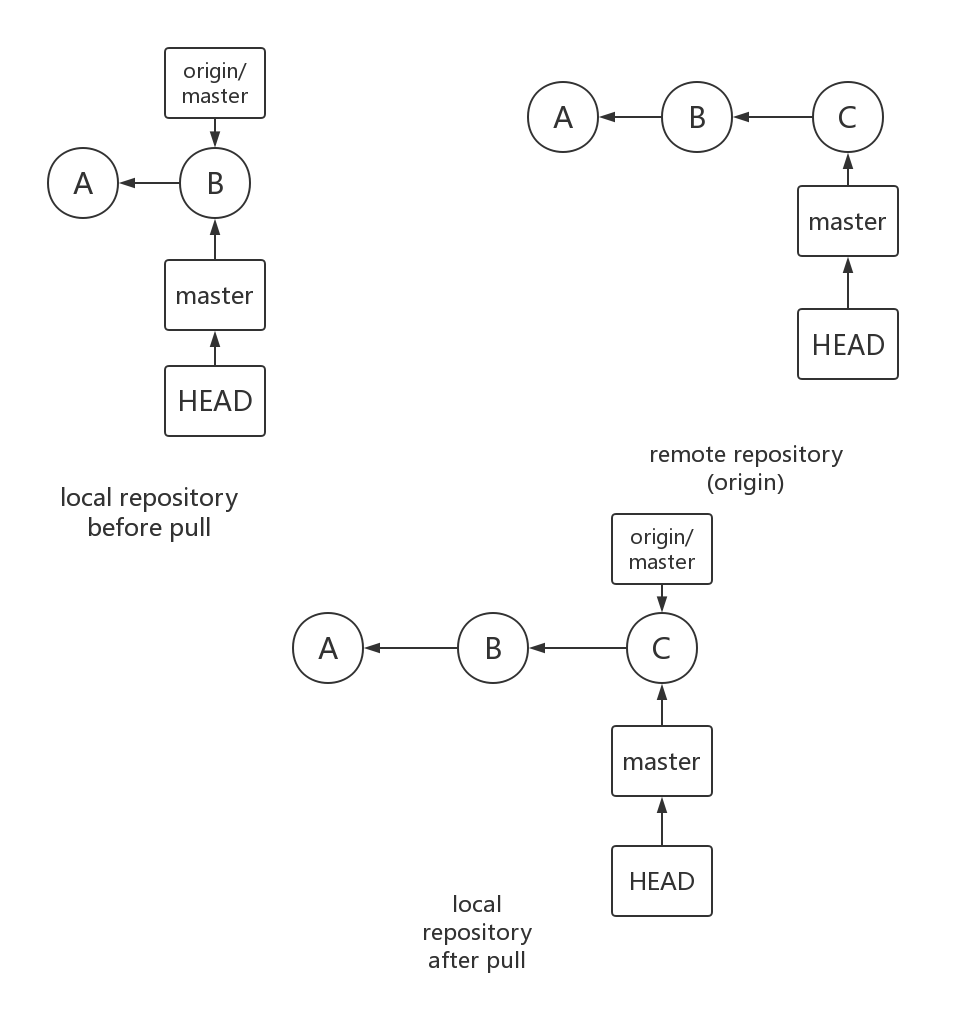
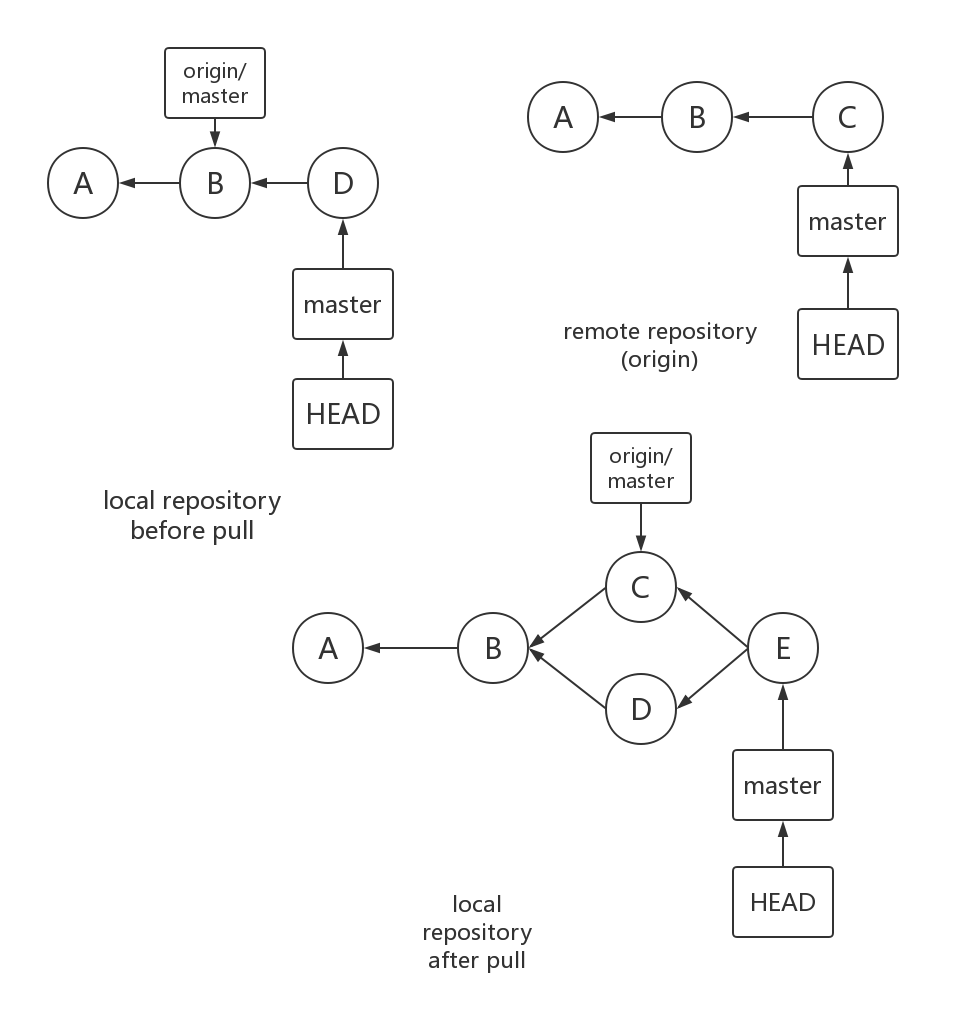
Combines git fetch and git merge FETCH_HEAD (FETCH_HEAD is an alias for the tip of the tracking branch)
- If objects are fetched, the tracking branch is merged into the current local branch
- This is similar to a topic branch merging into a base branch
Example
1 | git pull |
git pull Command Options
--ff(default) fast-forward if possible, otherwise perform merge commit--no-ff-always include a merge commit--ff-onlyonly accepts fast-forward merges and Git will cancel the merge instead of doing a merge commit
Graph
Pull With a Fast-Forward Merge
Pull With A Merge Commit
Push
How to Push
git push [-u] [repository] [branch]
-uTrack this branch (--set--upstream)
Example
1 | git push -u origin master |
Note
Fetching or pulling before you push is suggested